Data maps in Spaces
Data map extensions represent the generalized mapping between two object definitions. For more details on Data maps, refer to Data map extensions.
The Data maps editor
The Data maps editor features the following:
- Selector for choosing the Data Map within the context process.
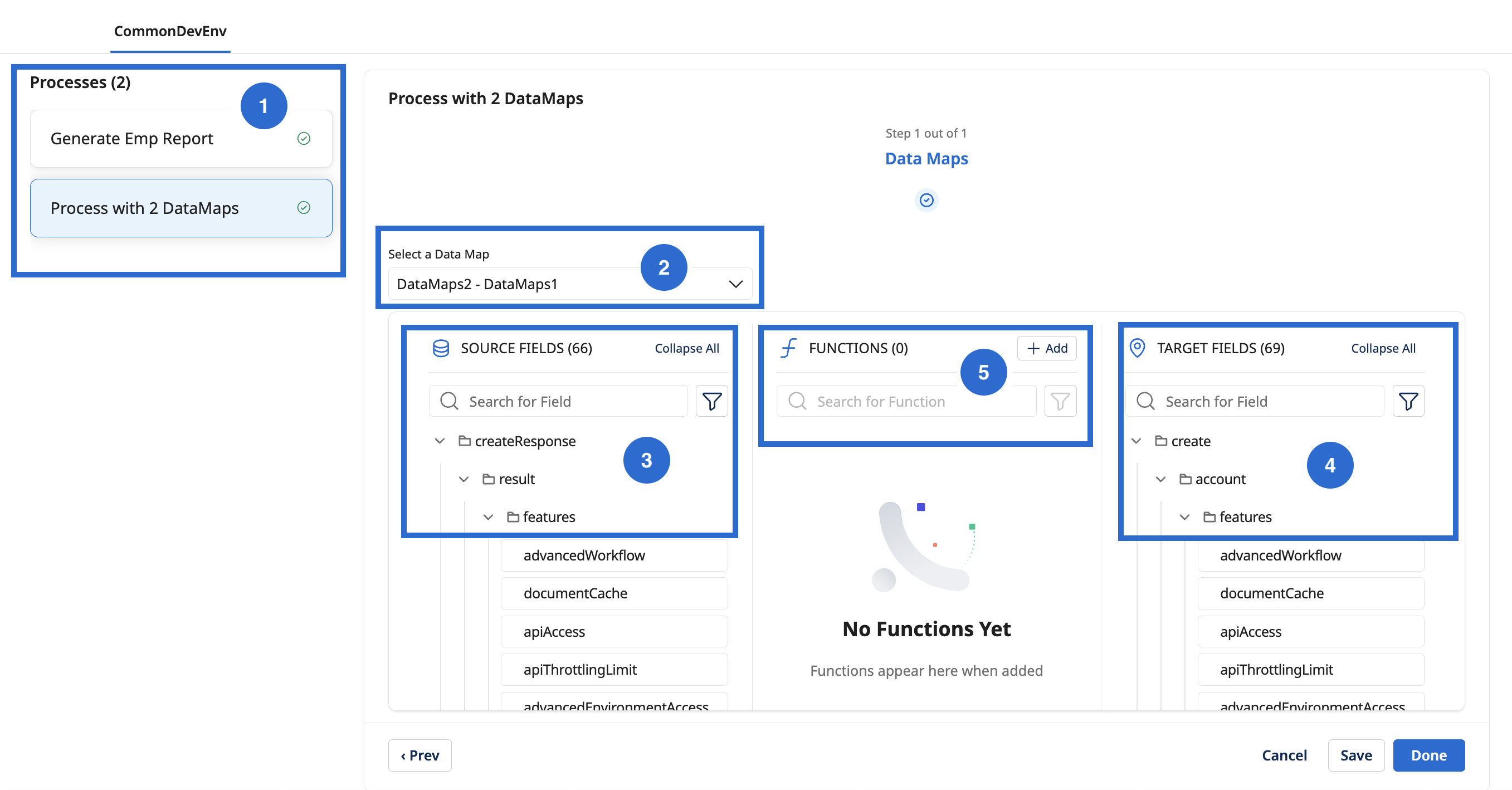
- SOURCE FIELDS: This section displays the set of input fields included as part of the Data map.
- TARGET FIELDS: This section displays the set of output fields included as part of the Data map, to which the SOURCE FIELDS can be transformed.
- FUNCTIONS: In this section, you can add the transformation functions for your input. You can currently perform transformation on the following categories:
- String: Includes String operations like trimming, appending, concatenation, case conversion, and so on.
- Numeric: Includes basic arithmetic operations, floor operation, formatting, and so on.
- Date: Includes options to format the date and get the current date.
- Lookup: Includes simple lookup option for key-value pairs that you add.
- User Defined: Allows you to link together multiple standard functions.
Editing the Data map
To edit a Data map:
-
Select a process for the Data map transformation from the left pane.
-
Select the Data map to use from the selected process. Based on the Data map selection, the system populates the source fields, functions, and target fields in their respective sections.
noteThe mapping configuration of the selected Integration process determines which fields and functions gets displayed in the mapping editor.
-
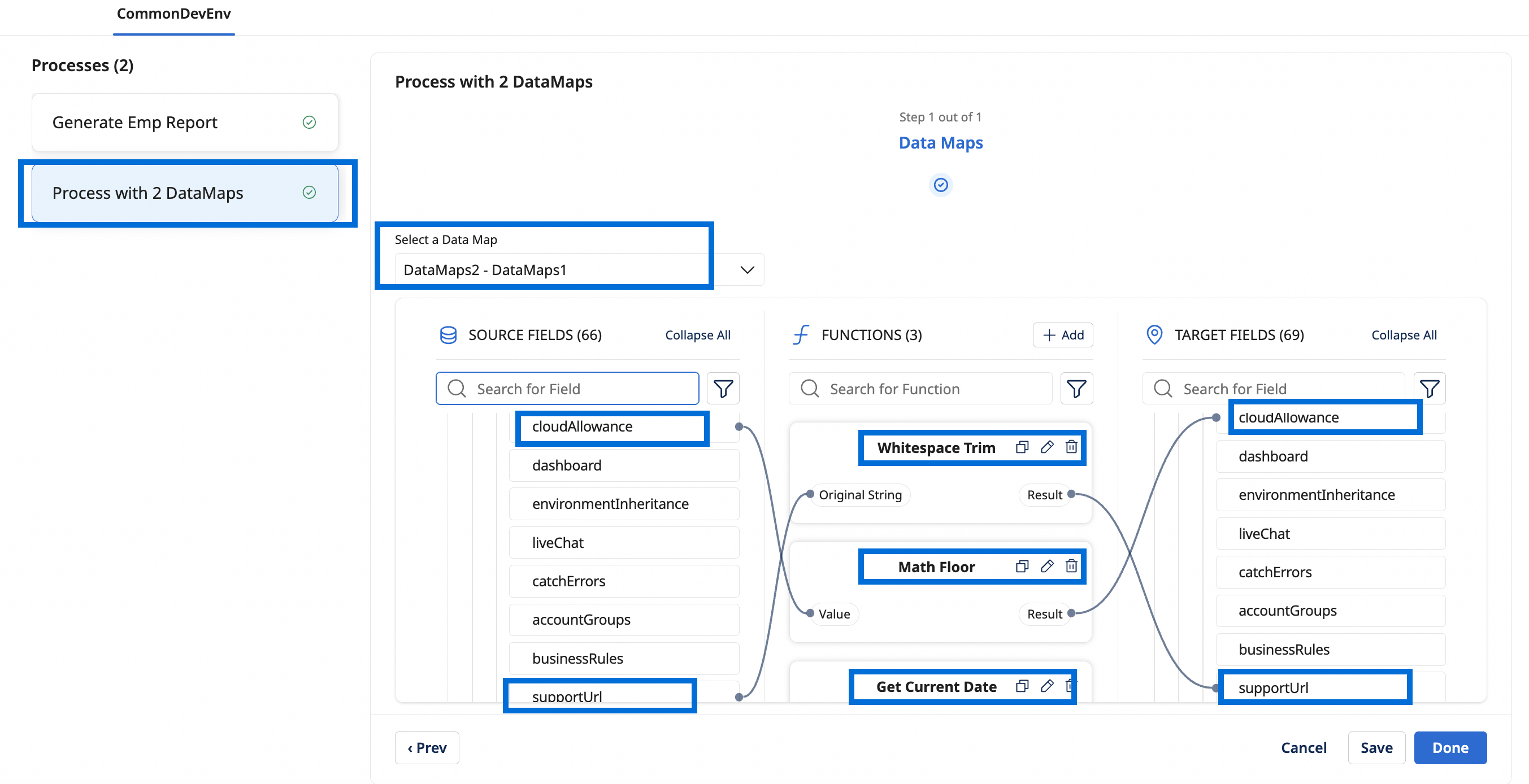
To directly map a source field to a target, drag the source field to the target field.
-
To transform one or more source fields to a target field, using a String transformation function:
- Click Add under the FUNCTIONS section. The Add a Function page opens.
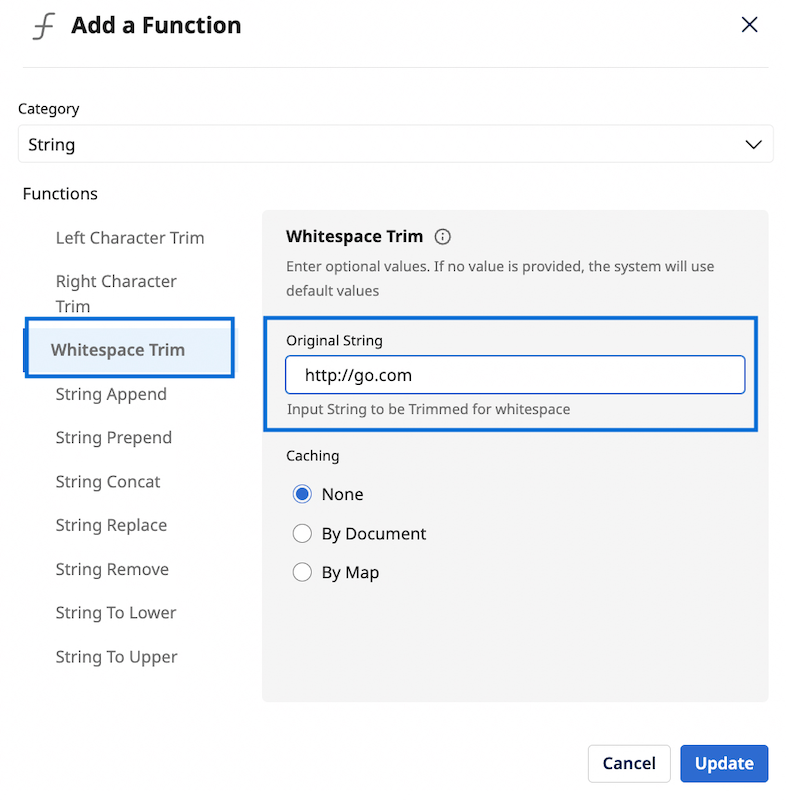
- Select String for Category.
- Select a String Function, for example, Whitespace Trim.
- Provide the Original String that needs to be transformed and click Add.
- After adding a function, drag a source field to the input field of the function. In the same way, drag the output field of the function to the target field.
You can also add functions for transforming Numeric and Date data types, and for creating Simple Lookup and User Defined functions. For more information on adding user-defined functions, refer to User-defined functions.
- Click Add under the FUNCTIONS section. The Add a Function page opens.
-
Click Next in the installation wizard to complete the data mapping step.
Creating user-defined functions
To add a user-defined function:
- In the Add a Function page, select User Defined for Category.
- Click Create new. The editor for the user-defined function opens.
- You can rename the function by clicking the edit icon.
- Add one or more input fields by clicking the + icon under the INPUT section.
- Similarly, add an output field by clicking the + icon under the OUTPUT section.
Use the edit and delete actions next to each field to modify your inputs and outputs.
- Click Add Function.
- Create one or more functions, define the functions, and click Add.
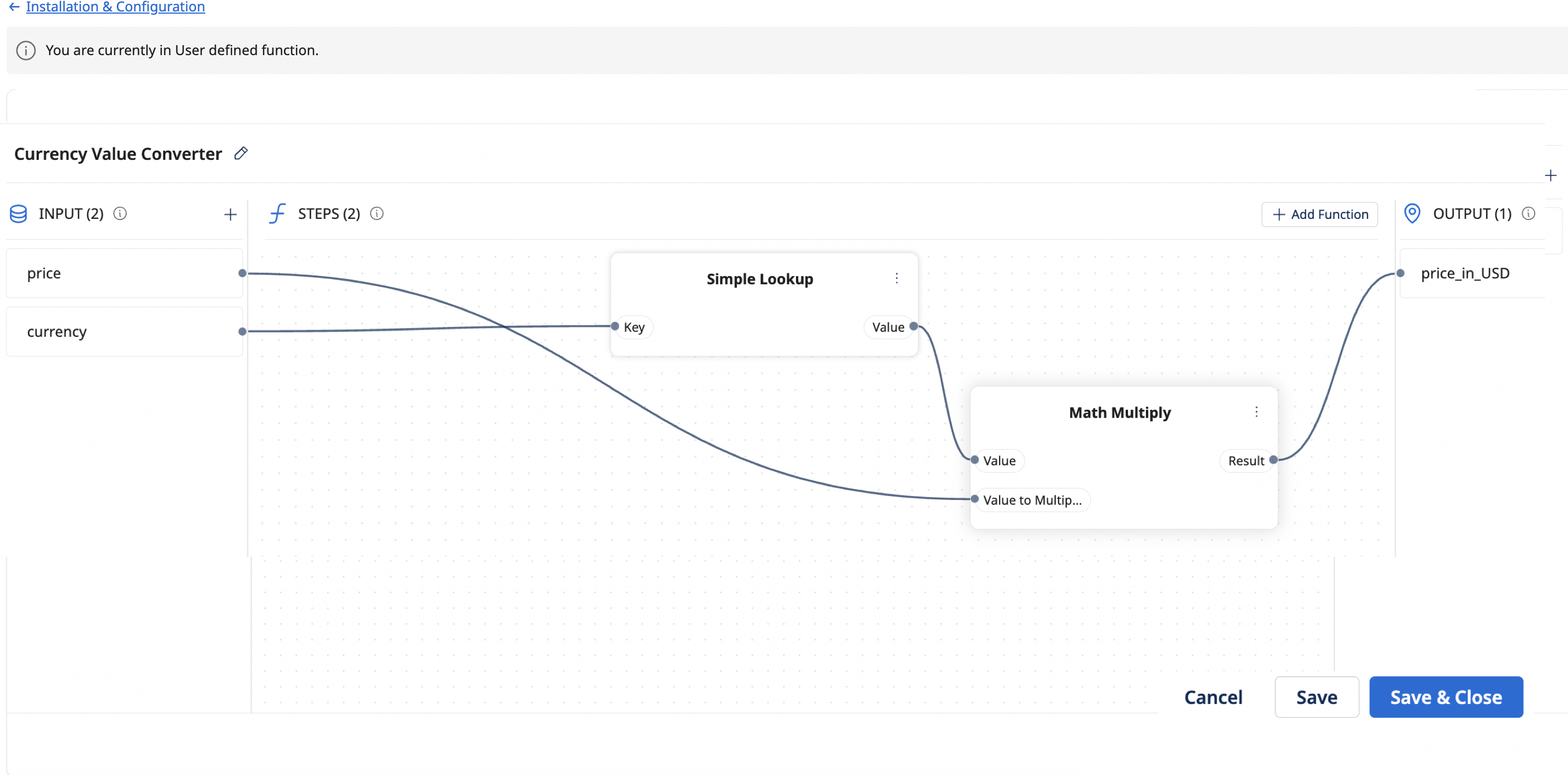
- Map the input and output fields to the functions created in the previous step, and define any dependencies between those functions.
For example, to create a price converter that converts prices from other currencies to US dollars, you can create two functions: a simple lookup function to retrieve exchange rates, and a multiplication function that multiplies the source price by the exchange rate to produce the US dollar value, as shown below.
- Click Save or Save & Close. 10 Click Add to add the user-defined function to the Data map.
- Repeat the above steps to create more user-defined functions.
- Once you have defined the inputs, outputs, functions and mappings for a user-defined function, ensure you Save the Data map, to avoid losing your changes.
- After adding a user-defined function, you can Edit, Duplicate, or Delete it.
Editing user-defined functions
To edit a user-defined function:
- Click Edit on the user-defined function tile.
- You can Create new function, Open editor to edit the mappings of an existing function and then click Add/Update to complete the editing action.
Applying user-defined functions
After creating user-defined functions, define the input and output mappings for these functions in the Data Map step of the installation wizard.
- To undo a mapping, click the blue dot highlight on the source or target field.
- After creating a function, you can Edit, Duplicate, or Delete it.
Completing the Data map step
After editing one or more Data maps, check out the Next Steps to complete the configuration process for Integration Packs.
